Thursday, January 22, 2015

Search and Replace in Oracle Forms

In Oracle Forms, many times there is a need to search and replace text, for example change the name of some database objects. If there are few forms, the search-replace exercise can be done using Oracle Forms Builder. But if it needs to be done for large number of forms an automated approach, which can be easily applied to the batch needs to be devised. 

Following is some research related to the same:

1) Oracle forms can be converted to text and vice versa (i.e. FMB to FMT and FMT to FMB). However, in the text file all the PL/SQL code gets converted to a cryptic text. This file therefore cannot be used for search & replace.

2) Oracle also provides another option to convert the form to XML format and vice versa (i.e. FMB to XML and XML to FMB). The PL/SQL code in the XML format doesn’t is in readable format and hence we can search and replace text. I was able to change the code in sample form and convert it back to FMB successfully. However, I noticed that there the color of the Canvas changed to a different color. There could be some other hidden after effects as well mainly in the UI.

3) Oracle provides a third option, which is to programmatically modify the form files. This was originally a C language API which was complex to use. But recently Oracle has also provided a Java API for this. As this is programmatic, I hope this to be much cleaner than the XML option. Also, more suited for developing a tool. This needs to be researched further.

Notes from research:

1) To convert FMB to text format (FMT) and vice-versa
Open the form in Form Builder. Go to menu File -> Convert.

2)      Command to convert FMB to XML 
frmf2xml.bat OVERWRITE=YES XXARCUST_2.fmb

3) Command to convert XML to FMB
frmxml2f OVERWRITE=YES USERID=<usr>/<pass>@<db> XXARCUST_2_fmb.xml

4) Useful links


Tuesday, December 23, 2014

How to assign Oracle Workflow Administrator privileges to users

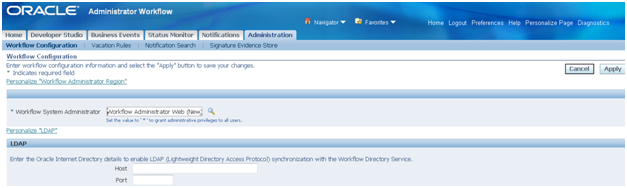
The workflow administrator privilege can be assigned to a particular user, responsibility or to everyone. The setup is done using the Administration function. Navigate to ‘Workflow Administrator (Responsibility) => Administrator Workflow (Menu) => Administration (Function).

In the field ‘Workflow System Administrator’ set the value to which you want to assign the workflow administrator privilege.

· To make ‘SYSADMIN’ user the workflow system administrator set the value as ‘SYSADMIN’


· To make all users workflow system administrators set the value as ‘*’.


·        To make all users having a particular responsibility as workflow system administrators choose the responsibility using the torch button. Generally, the responsibility ‘Workflow Administrator Web (New)’ is chosen for this purpose.


Thursday, August 14, 2014

How to enable Workflow ‘Notifications Search’ in Oracle Apps R12

How to enable ‘Notifications Search’ in Oracle Apps R12
The workflow notifications search functionality is not enabled by default in R12. You need to assign the corresponding search function as described below.
Step 1
Identify the menu attached to the responsibility in which you want to provide the notification search functionality.
Make an entry in the menu with prompt ‘Notifications Search’ and function ‘Workflow Notification Search’


Step 2
Assign the role ‘WF_ADMIN_ROLE’ either individually to the users or to the responsibility. This can be using the ‘Users Management’ responsibility. Search for the User to which you want to assign the role and then click the ‘Update’ icon.


Step 3
On the next page, click ‘Assign Roles’ and assign the role ‘Workflow Admin Role’ to the user.

           
Step 4
Now when the user logs in to applications, the Notification Search will be visible.


Wednesday, July 30, 2014

How to Set Org Context in Oracle Apps R12

begin
mo_global.init ('PO');   -- The short name of the application
mo_global.set_policy_context('S',103); -- ‘S’ for single org and second parameter for the Org ID
end;
/

Wednesday, March 19, 2014

How to grant Oracle Workflow Roles to FND Users

There are two possible ways

If the Workflow Role is a EBS responsibility, you can simply assign the responsibility to the FND User. (i.e. this can be achieved using the application forms).

If the Workflow Roles is not a EBS responsibility, i.e. it has been created as an ad-hoc role using the WF_DIRECTORY.CreateAdHocRole API then you need to assign the role to user also using the WF_DIRECTORY.AddUsersToAdHocRole API.  (There is no way to achieve this using application forms, it can be done only using API).

Monday, January 20, 2014

Oracle OPM Interview Questions

1)      What are the different types of manufacturing processes? And what are the primary differences between them? OR
Explain Process Manufacturing v/s Discrete manufacturing?


2)      What are the modules that come under oracle’s OPM solution?

Answer: OPM includes OPM Process Planning, Product Development(which includes Formula,Recipe,Quality), Production, Financials(Costing,MAC), Logistics, Regulatory Management etc. These are products which come under this umbrella..
·         OPM Cost Management
·         OPM Formula Management
·         OPM Intelligence
·         OPM Inventory Management
·         OPM Laboratory Management
·         OPM Master Production Scheduling
·         OPM Material Requirements Planning
·         OPM Production Management
·         OPM Purchasing Management
·         OPM Quality Management
·         OPM Capacity
·         OPM Sales Management
·         Oracle Financial
3)      Name and explain frequently used terms in Oracle Process Manufacturing?


4)      Name some important tables used in OPM? ORWhich tables stores the formula information?

Answer:
1)      select a.FORMULA_ID,a.formula_no,a.FORMULA_DESC1,b.INVENTORY_ITEM_ID,c.description,b.organization_id,decode(b.line_type,-1,’Ingredient’,'Product’) Type
from FM_FORM_MST a,FM_MATL_DTL b,mtl_system_items c
where a.formula_id=b.FORMULA_ID
and b.ORGANIZATION_ID=:your_Org_id
and a.FORMULA_CLASS<>’COSTING’
and b.INVENTORY_ITEM_ID=c.inventory_item_id
and b.ORGANIZATION_ID=c.organization_id
order by a.FORMULA_ID

2)      Select b.RECIPE_DESCRIPTION,a.RECIPE_VALIDITY_RULE_ID,c.INVENTORY_ITEM_ID,d.description,decode(c.line_type,-1,’Ingredient’,'Product’) Type,
sum(e.TRANSACTION_QUANTITY) quantity
from apps.GME_BATCH_HEADER a,apps.gmd_recipes b,gmd_recipe_validity_rules grr,apps.gme_material_details c,apps.mtl_system_items d,apps.mtl_material_transactions e
where a.FORMULA_ID=b.FORMULA_ID
and a.ROUTING_ID=b.ROUTING_ID
and a.RECIPE_VALIDITY_RULE_ID=grr.RECIPE_VALIDITY_RULE_ID
and grr.RECIPE_ID=b.recipe_id
and a.BATCH_ID=c.BATCH_ID
and a.ORGANIZATION_ID=c.ORGANIZATION_ID
and c.INVENTORY_ITEM_ID=d.INVENTORY_ITEM_ID
and c.ORGANIZATION_ID=d.organization_id
and a.batch_id=e.TRANSACTION_SOURCE_ID
and a.ORGANIZATION_ID=e.ORGANIZATION_ID
and c.INVENTORY_ITEM_ID=e.INVENTORY_ITEM_ID
and a.batch_no in (select batch_no from apps.GME_BATCH_HEADER where trunc(plan_start_date) between :from_date and :to_date)
and a.ORGANIZATION_ID=:your_org_id
and trunc(e.transaction_date) between :from_date and :to_date
group by b.RECIPE_DESCRIPTION,a.RECIPE_VALIDITY_RULE_ID,c.INVENTORY_ITEM_ID,d.description,c.line_type
order by RECIPE_DESCRIPTION


5)  Explain what do you mean by  Formula and Recipe?
Formula is Ingredients and their proportions
Receipe is Formula + Routing.

6) What are different kinds of losses?
Fixed loss and Variable loss.


Also, visit the following link for topics on which the interview questions can be asked for Oracle SQL, Database, Forms and Report
http://tenthsense.blogspot.in/2012/04/fresher-interview-for-oracle-database.html

Friday, December 20, 2013

How to identify the Activity ID for a Oracle Workflow Activity


Sometimes, we have to run the function attached to a workflow activity to see how it had worked for a particular run of a workflow. The standard definition of workflow functions has four input parameters viz. Item Type, Item Key, Function Mode and Activity ID. The Item Type and Item Key can easily be found on the workflow status monitor page. The Function Mode is normally RUN. Getting the value for Activity ID can be tricky. This is how the activity ID can be found in two different scenarios.

2.   Scenario – The workflow activity has encountered error.

          In this case you can get the activity by going to the Workflow Status Monitor -> Activity           History Table -> Click on the Error link on Status column. The error details page will give             you the Activity ID as shown below:


3.   Scenario – The workflow activity has completed successfully.
In this case the Activity ID is not available anywhere on the workflow status monitor page. So in this case the following query should be ran to get the Activity ID.
This query takes the ‘Activity Internal Name’,’ Item Type’ and ‘Item Key’ as input. The Activity ID is the INSTANCE_ID as available in the table WF_PROCESS_ACTIVITIES.

        SELECT WI.ITEM_TYPE
              ,WI.ITEM_KEY
              ,WI.BEGIN_DATE
              ,WPA.INSTANCE_ID ACTIVITY_ID
              ,WPA.ACTIVITY_NAME ACTIVITY_NAME
              ,WPA.PROCESS_NAME
          FROM APPS.WF_ITEMS WI
              ,APPS.WF_ITEM_ACTIVITY_STATUSES WIAS
              ,APPS.WF_PROCESS_ACTIVITIES WPA
         WHERE WI.ITEM_TYPE = WIAS.ITEM_TYPE
           AND WIAS.ITEM_TYPE = WPA.PROCESS_ITEM_TYPE
           AND WI.ITEM_KEY = WIAS.ITEM_KEY
           AND WIAS.PROCESS_ACTIVITY = WPA.INSTANCE_ID
           AND WPA.ACTIVITY_NAME = UPPER('&Activity_Name')
           AND WI.ITEM_TYPE = UPPER('&Workflow_Item_Type')
           AND WIAS.ITEM_KEY = UPPER('&Workflow_Item_Key')


This query may return multiple rows in case the activity is used multiple times within a process. In such a case, you should can identify the Activity ID based on the number of times the activity has occurred within the process. 
(Hint: The Activity ID is a numeric value which keeps on increasing in value)